Creating Airplane Illustrations in Adobe Photoshop
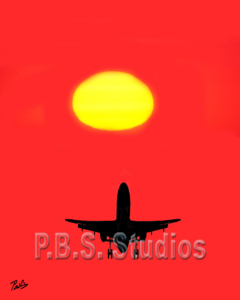
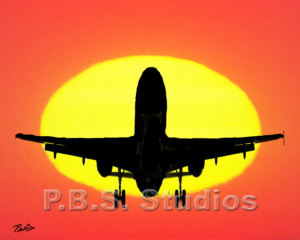
Looking in my files this past weekend, I found a couple of images I created last year but never published. I’d seen a movie wherein one scene a large jet took off, carrying the lead characters, in front of a setting sun. I thought the graphic of the jet and setting sun was beautiful. I also felt that I creating airplane illustrations in Adobe Photoshop using photographs in my files.
As anyone who knows me will tell you, I’m fascinated with sunrise/sunsets, airplanes, and trains. Over the years, living and visiting family on Cape Cod, I have photographed many sunrise/sunsets. I could use one of those images as the base image. Then use Adobe Photoshop to enlarge and enhance the image of the sun to fill the image.
My Love of Airplanes
I also have spent many hours at Gravely Point, a small spit of land on the banks of the Potomac River at the end of Ronald Reagan Washington National Airport main runway. Gravelly Point Park is a popular spot for watching plane take-off or land (depending on the wind direction). Some sit in their cars, others bring a blanket and food and picnic at the grassy area at the runway and watch as the jets fly overhead.
For years, while working in Crystal City, I would spend my lunch hour in the parking lot at Gravely Point end of National airport the runway, watching the jets taking off or landing. I even purchased a portable radio with the aircraft band. I used the search feature to find the radio frequency for the DCA Tower. I heard the jets communicate DCA regional control out of Leesburg as they approached the airport. Their last communication often told the plane to switch to a different frequency transfer to the DC Tower as the plane touched down on the tarmac. I would change frequencies along with the jet and then hear the conversation on what gate to park the aircraft.
Finding the Right Images
Finding the right images is a critical element in creating a photo illustration. I could tell you I searched through thousands of images (well, in one sense, I did because that is how many images I have, according to Lightroom). I still have my original 35mm color slides, which I converted to digital. Since I purchased my first digital camera (Nikon D70), I load all those images onto external hard drives. When I purchased Adobe Photoshop Lightroom (commonly called Lightroom), I imported digital images into the Lightroom database. Over the years, I’ve accumulated thousands of images, enough to fill multiple external hard drives. Searching Lightroom, I found a sunset and an image of a jet taking off at Reagan National.
Creating Airplane Illustrations
Once I found the elements, I imported and made layer adjustments to enhance the color. I made a backup of the sunset image. I then resized the sun to cover the entire horizontal image. After opening, I selected jet from the background. I used a fill layer to turn the airplane into a silhouette. I then copied it as a jet layer on top of the sun.
When creating photo illustrations, I like to start with a clean document. Then import each element as a separate layer on top of the base layer. That way, I can manipulate the layer without interfering with another layer. That is how I created two photo illustrations. One is before I used the transform feature to enlarge the sun and jet. The result is a couple of colorful photo illustrations of an airplane taking off in the evening sun.
Check out the gallery section on my website, www.pbsstudios.com, to see other examples of photographs, photo illustrations, and digital paintings.

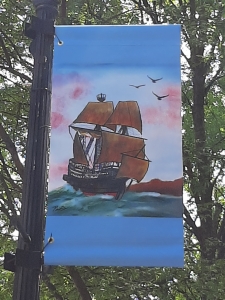

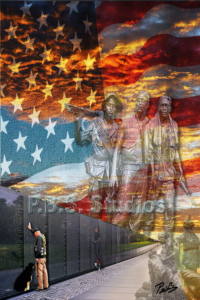 Memorial Day weekend is often associated with the start of the summer season here in America. With all the stores advertising Memorial Day sales, many people have forgotten the true meaning of Memorial Day holiday. This mixed media digital photo painting reminds people to remember all who are serving to keep our wonderful country free.,